How to set up SMS Connect (Android SMS Bridge)
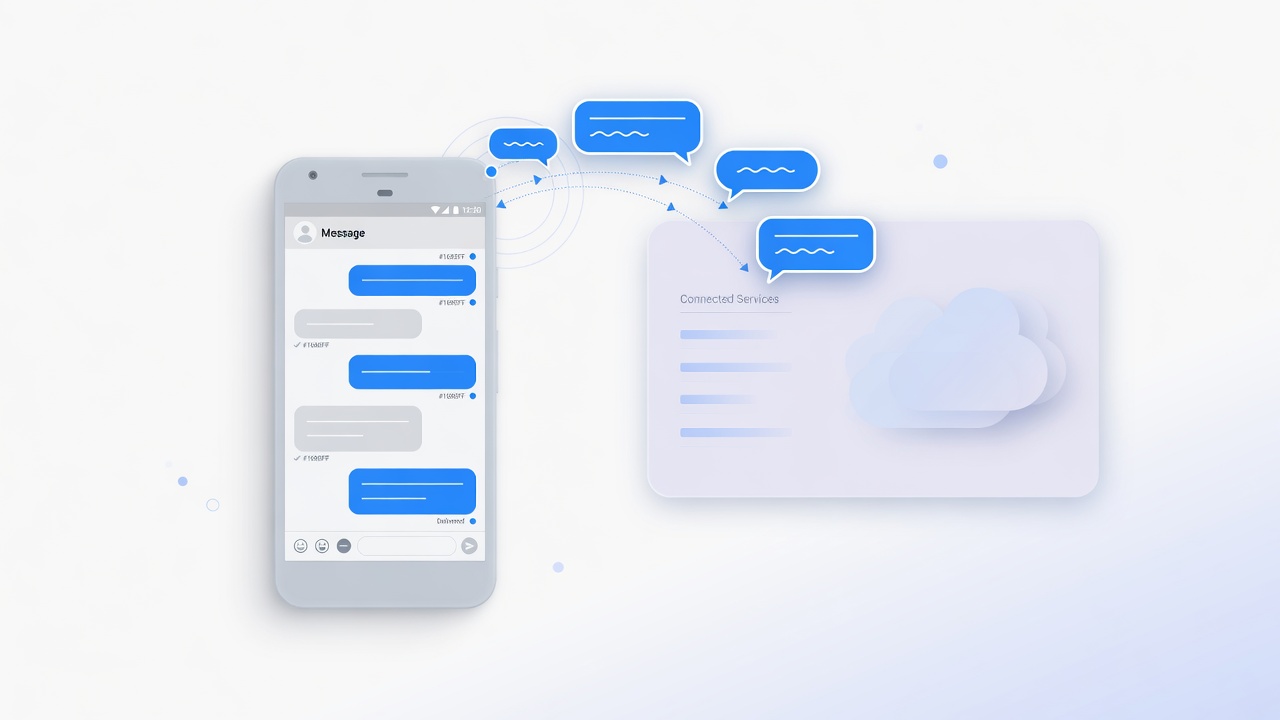
SMS Connect lets you send and receive real SMS messages from a physical Android phone’s SIM card inside ChatConnector / Double My Leads, and into your HighLevel (GHL) conversations when the SMS Marketplace app is installed.
You keep your own carrier plan (BYOD). ChatConnector does not sell phone numbers — it bridges your phone’s SMS to the dashboard and CRM.
Before you start sending: read SMS Connect: How to Send SMS from Your Android Phone for recommended uses, safe SMS Bridge settings and how to avoid getting your line blocked. En español: SMS Connect: cómo enviar SMS desde tu teléfono Android.
What you need
| Item | Notes |
|---|---|
| Android phone | Dedicated phone recommended (budget Android is fine). Keep it powered and online. |
| Active SIM | Must be able to send/receive SMS on your carrier. |
| SMS Connect slot | $10/month per active SIM. Does not require a DML Platform plan. |
| Stable internet | Wi‑Fi or mobile data so the bridge can stay connected. |
| Official app | SMS Bridge APK from ChatConnector only. |
Workspace rule: each workspace (GHL sub-account) supports 1 active SIM. Extra SIMs on the same phone can pair but stay inactive until you free a slot or use another workspace.
Step 1 — Buy SMS Connect
- Sign in to ChatConnector / Double My Leads.
- Open the workspace where you want SMS.
- Go to SMS Connect · Devices (workspace SMS settings, or Plugins → SMS depending on your layout).
- If you have no SIM slots yet, click Buy SMS Connect · $10/mo.
- Complete checkout. Your account gains 1 active SIM slot per purchase.
You can buy additional slots on the same account for more workspaces/numbers.
Step 2 — Download SMS Bridge
Install only the official release:
https://chatconnector.app/android/sms-bridge
- Open that page on the phone (or download on a computer and transfer the APK).
- Tap Download approved APK.
- Allow install from unknown sources / this browser if Android asks.
- Install the app. The app name is SMS Bridge.
Important: Only install APKs from that ChatConnector page or a link from ChatConnector support. Do not use third-party “SMS gateway” apps for this product.
Updating: install the new APK over the existing app. Uninstalling forces you to pair again.
Step 3 — Grant permissions
Open SMS Bridge and allow:
- SMS — send, receive, and read SMS (required for the relay)
- Phone — SIM / subscription info for sender registration
- Notifications — required on modern Android so the service can stay visible
- Battery unrestricted / Ignore battery optimization — so Android does not kill the bridge when the screen is off
The phone is not ready until critical SMS, phone, and notification permissions are granted.
Tips for reliability:
- Plug the phone into power (or keep charge high).
- Prefer Wi‑Fi that does not sleep aggressively.
- Leave SMS Bridge running in the background; do not force-stop it.
Step 4 — Pair the device (QR only)
Pairing is QR-only for customers. After a successful scan, the connection starts automatically (no offline/online toggle).
In ChatConnector / HighLevel
- Open SMS Devices for the correct workspace:
- Dashboard: workspace → SMS Connect / SMS Devices
- HighLevel custom menu: SMS Connect embed for that sub-account
- Click Pair Android device.
- A QR code appears (pairing token is short-lived — generate a new one if it expires).
On the Android phone
- Open SMS Bridge.
- On Home, tap Scan QR code (or open Pair).
- Scan the QR from the dashboard.
- Wait until the dashboard shows the device online and an active SIM (phone number / SIM slot).
If the QR fails, generate a new pairing QR and try again. Do not reuse old screenshots of QR codes.
Step 5 — Confirm it works
On SMS Devices you should see:
- Devices online: at least
1 - Active SIM (this workspace):
1with your number when available - Account capacity: how many SIM slots you purchased vs in use
Then:
- Open the SMS inbox (or HighLevel conversations if GHL SMS is linked).
- Send a test SMS to a real mobile number you control.
- Reply from that phone and confirm the inbound message appears.
Using SMS with HighLevel (GHL)
If you use HighLevel:
- Install the ChatConnector SMS Marketplace app on the sub-account (separate from WhatsApp QR).
- Keep the Android device paired to that same workspace/sub-account.
- Outbound SMS from GHL conversations and inbound replies flow through the bridge when the Marketplace install is active.
WhatsApp QR / Baileys is a different product path. Disconnecting WhatsApp does not unpair SMS, and vice versa.
Limits & billing (quick reference)
- $10/month per active SIM (flat; no Platform plan required).
- 1 active SIM per workspace (1 per GHL sub-account).
- Extra SIMs on a dual-SIM phone may appear paired but inactive if the workspace or account is full.
- Unpairing a device deactivates its SIM senders for that workspace.
Avoid getting blocked
SMS Connect is for conversations, not bulk blasts. Set a random delay and an hourly limit in SMS Bridge and follow the full guide: SMS Connect: How to Send SMS from Your Android Phone.
Troubleshooting
| Symptom | What to try |
|---|---|
| Device stuck offline | Open SMS Bridge, confirm permissions + battery unrestricted, stable internet, phone not force-stopped. Refresh SMS Devices. |
| “No SMS Connect SIM slots” | Buy SMS Connect ($10/mo), then pair again. |
| SIM paired but inactive | Workspace already has 1 active SIM, or all account slots are in use. Free a slot, unpair another device, buy another slot, or use another workspace. |
| Pairing QR does nothing | Create a new Pair Android device QR; ensure you’re scanning with SMS Bridge (not a generic camera-only flow that doesn’t hand off to the app). |
| Messages fail after update | Install the new APK without uninstalling. If you uninstalled, pair again with a new QR. |
| Can’t install APK | Enable install from that source in Android settings; download again from the official page. |
Still stuck? Contact support via your ChatConnector / Double My Leads help channels (ProductLift Help / in-app support).
Official links
- Download SMS Bridge: https://chatconnector.app/android/sms-bridge
Last updated for SMS Bridge customer releases on chatconnector.app. Pairing flow: QR from SMS Devices → scan in SMS Bridge → keep phone online.